JEC Relay: Maps and Results

Posted by Jan Kocbach, 25 Oct 2009@23:38


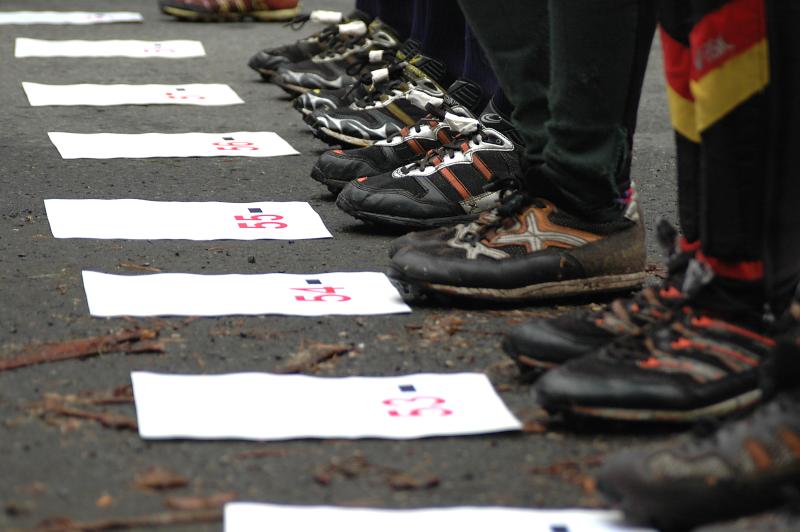
Denmark Wins Both JEC Relay Races, Switzerland Gets the Cup. Today the Junior European Cup in Germany ended with an extremely exciting relay competition that left the decision about the winner of the nations ranking open until the very last metres. Up to ten teams fought both in the women’s and in the men’s classes on the final loop of the third leg for the first places on the slopes on both sides of Cunnersdorfer Bach stream.

The running order of the top teams changed every minute for the duration of the whole race – again and again there were new leading runners at the radio control, at the spectator route and at the changeover making the excitement amongst competitors and spectators in the finish arena tangible till the end.

Tricky, stony middle part

trickymiddle
In the morning it looked like it would become a golden October day, yet shortly after the mass start of the 24 women’s and 31 men’s teams a fine drizzly rain was setting in that didn’t stop for the whole duration of the competition. Nevertheless, the running men and women offered performances which left even the experienced speakers Andreas Haldi and Jan Birnstock using countless superlatives. Especially a steep slope with many rocks and stones in the middle part of the courses made it possible to win – or loose – valuable seconds or even minutes. Therefore, for a long time no team succeeded in breaking away from its opponents.

Double Denmark

JEC-Orienteering
Only at the end of the third leg, the final runners Emma Klingenberg and Søren Bobach were able to open up the decisive gap to their pursuers and thus to secure the Danish team a surprising double victory. With that, Emma Klingenberg (W18), who won three gold medals, is also the most successful athlete of the JEC weekend in Germany. Even though in the nations ranking the Danish team came very close to the best placed teams from Switzerland, Norway and Czech Republic and despite of their excellent relay results they were not able to make any changes to the rostrum places of the Junior European Cup.

Because of the most homogenous team performance, this year’s cup is taken home by the team from Switzerland.

Maps
Results

Women (3 x 4.5km / 200m climb / 16C)
1. Denmark 1 (Ida Bobach, Signe Klinting, Emma Klingenberg) 1:40:03
2. Switzerland 1 (Fiona Kirk, Isabelle Feer, Julia Gross) 1:40:29
3. Czech Republic 1 (Tereza Novotna, Vendula Horcickova, Jana Knapova) 1:41:38

Men (3 x 6.5km / 300m climb / 20C)
1. Denmark 1 (Søren Schwartz Sørensen, Marius Thrane Ødum, Søren Bobach) 1:53:53
2. Switzerland 1 (Niklaus Rey, Florian Howald, Matthias Kyburz) 1:55:34
3. Norway 1 (Jo Forseth Indgaard, Hakon Westergard, Eskil Kinneberg) 1:55:45

Junior European Cup Nations Ranking
1. Switzerland 102 points
2. Norway 133 points
3. Czech Republic 151 points

Source: Email from JEC organizers. Photos: JEC organizers.

JEC Long: Maps and Results

Posted by Jan Kocbach, 24 Oct 2009@22:55

jeclongsample

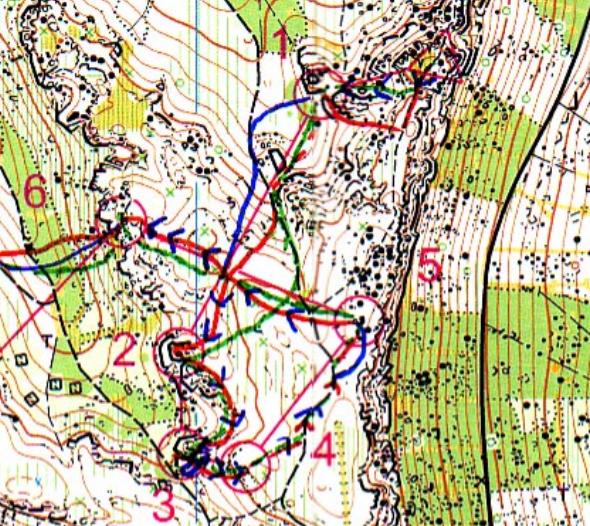
Junior European Champs, Germany: Clear Decisions in the Sandstone Rocks on the JEC Long Distance Courses. The long distance race of the Junior European Cup showed today that the courses in all four classes were of a very selective nature and lead to distinct intervals even between the winners of the first places. Mainly those nations who already divided yesterday’s sprint medals amongst themselves were successful on the physically extremely demanding courses through the sandstone rocks around the peaks of Katzstein and Lampertstein.

Difficult sandstone formations

The terrain, which was already known from the 2004 World Cup Finals, asked mainly for finding solutions to two problems: making the right route decisions on the long legs over various stretched ridges and the valleys between them as well as ensuring safe fine orientation through the difficult sandstone formations of Katzstein and Lampertstein. To aggravate the situation, last week’s early onset of winter resulted in reduced runnability in some areas due to snow breakage.

Norway and Czech Republic

The Norwegian runners and the team from Czech Republic, which was traded as the favourite in the run-up to the competition, managed this with the most success and thus they were able to gain ground in the nations ranking compared to the Swiss runners which again showed a strong performance. Two starters – Emma Klingenberg (W18) from Denmark and Mattias Kyburz (M20) from Switzerland – were able to repeat their success from the sprint yesterday.

The final relay race on Sunday, which will be held in the same terrain as the long distance race, will determine which one of only three teams – Switzerland, Norway and Czech Republic – will be able to win the JEC nations ranking.

Maps

Results

jeclongpic
Women-18 (5.9km / 230m climb / 20C)

1. Emma Klingenberg DEN 53:36
2. Ingjerd Myhre NOR 56:14
3. Jana Valesova CZE 57:22

Women-20 (7.3km / 310m climb / 25C)
1. Anastasia Tikhonova RUS 65:51
2. Fiona Kirk SUI 67:47
3. Zenia Hejlskov Mogensen DEN 70:13

Men-18 (9.1km / 375m climb / 25C)
1. Eskil Kinneberg NOR 63:28
2. Pavel Kubat CZE 64:59
3. Jan Petrzela CZE 65:40

Men-20 (10.0km / 470m climb / 27C)
1. Matthias Kyburz SUI 68:47
2. Milos Nykodym CZE 70:55
3. Søren Bobach DEN 72:23

Junior European Cup Nations Ranking
1. Switzerland 78 points
2. Norway 91 points
3. Czech Republic 97 points

Source: E-mail from JEC Organizers and information at the JEC 2009-page. Photo: JEC Organizer

Full results

Women 18 (43) 6.0 km 20 C

1 115 Klingenberg, Emma 92 Team Denmark 53:36
2 103 Myhre, Ingjerd 92 Team Norway 56:14
3 120 Valesova, Jana Team Czech Republic 57:22
4 102 Jenzer, Sarina 91 Team Switzerland 57:47
5 138 Wennemo, Oda 92 Team Norway 58:16
6 111 Indrakova, Adela 91 Team Czech Republic 58:22
7 126 Gross, Julia 91 Team Switzerland 59:04
8 142 Horcickova, Vendula 93 Team Czech Republic 59:06
9 109 Novotna, Tereza 92 Team Czech Republic 59:29
10 114 Haverstad, Maren 92 Team Norway 59:51
11 137 Svobodna, Madla 91 Team Czech Republic 1:00:29
12 123 Arbter, Anja 93 Team Austria 1:01:04
13 105 Mauseth, Silje Uhlen 92 Team Norway 1:01:18
14 146 Hagner, Stine Bagger 92 Team Denmark 1:02:00
15 143 Bauer, Julia 92 Team Austria 1:02:16
16 108 Potapenko, Anastasia 91 Team Russia 1:02:45
17 141 Blomquist, Julia 91 Team Great Britain 1:03:02
18 129 Kosova, Denisa 91 Team Czech Republic 1:03:04
19 119 Dörig, Franziska 92 Team Switzerland 1:03:07
20 125 Ramstein, Laura 92 Team Austria 1:03:20
21 122 Schmidt, Johanna 92 Team Germany 1:03:32
22 112 Klingenberg, Ita 93 Team Denmark 1:05:12
23 135 Chepaeva, Natalia 92 Team Russia 1:05:34
24 136 Biller, Anna 92 Team Germany 1:05:38
25 133 Ibragimova, Dina 91 Team Russia 1:06:43
26 107 Baklid, Anette 91 Team Norway 1:08:05
27 134 Abrahamsen, Nanna Dybdal 91 Team Denmark 1:08:25
28 140 Lösch, Susen 93 Team Germany 1:08:53
29 101 Greiner, Josephine 91 Team Germany 1:08:55
30 117 Kortyleva, Veronika 92 Team Russia 1:09:44
31 127 Khoroshilova, Olga 91 Team Russia 1:10:23
32 110 Jørgensen, Astrid Ank 93 Team Denmark 1:11:00
33 128 Koch, Andrea 91 Team Switzerland 1:11:28
34 121 Mühletaler, Esther Team Switzerland 1:12:33
35 124 Rocke, Mairead 91 Team Great Britain 1:13:06
36 106 Harding, Rebecca 91 Team Great Britain 1:14:30
37 139 Davydova, Elizaveta 91 Team Russia 1:16:14
38 145 Habenicht, Marlene 91 Team Austria 1:18:15
39 130 Haare, Therese 91 Team Norway 1:21:41
40 144 Fuchs, Marie 94 Team Germany 1:26:03
41 104 Stambuk, Iva 91 Team Croatia 1:30:39
42 118 Greiner, Annkathrin 94 Team Germany 1:36:02
43 113 Kocila, Mihaela 91 Team Croatia 2:12:08

Women 20 (33) 7.3 km 25 C

1 216 Tikhonova, Anastasia 90 Team Russia 1:05:51
2 220 Kirk, Fiona 90 Team Switzerland 1:07:47
3 214 Mogensen, Zenia Hejlskov 89 Team Denmark 1:10:13
4 206 Mechlova, Lenka 90 Team Czech Republic 1:12:36
5 218 Hokholt, Linn 90 Team Norway 1:13:08
6 213 Butt, Alice 90 Team Great Britain 1:13:32
7 232 Khismatullina, Veronika 90 Team Russia 1:13:42
8 217 Klinting, Signe 90 Team Denmark 1:13:53
9 225 Knapova, Jana 90 Team Czech Republic 1:14:17
10 229 Tritschler, Sophie 90 Team Switzerland 1:14:48
11 222 Vike, Laura 89 Team Latvia 1:15:17
12 230 Glebova, Olga 90 Team Russia 1:15:41
13 238 Feer, Isabelle 90 Team Switzerland 1:16:17
14 227 Mathys, Brigitta 90 Team Switzerland 1:16:27
15 228 Tiltnes, Ida 89 Team Norway 1:17:34
16 211 Wright, Hazel 90 Team Great Britain 1:17:48
17 224 Hauerslev, Marie 90 Team Denmark 1:19:02
18 226 Sund, Goril Ronning 90 Team Norway 1:19:23
19 223 Fershalova, Karina 90 Team Russia 1:21:54
20 202 Röhnert, Karoline 92 Team Germany 1:22:02
21 212 Winkler, Marie 89 Team Germany 1:22:24
22 209 Darlington, Anwen 90 Team Great Britain 1:22:52
23 237 Nydal, Brit Ingunn 90 Team Norway 1:24:42
24 204 Vilberg, Siri 89 Team Norway 1:25:31
25 201 Jakobova, Adela 90 Team Czech Republic 1:26:56
26 234 Kapitonova, Alena 89 Team Russia 1:27:46
27 235 Skjerve, Elen Katrine 89 Team Norway 1:30:27
28 233 Mayrhofer, Ulla 90 Team Austria 1:33:18
29 208 Brovina, Ekaterina 91 Team Russia 1:34:47
30 236 Reinhardt, Anna 91 Team Germany 1:39:15
31 203 Petranovic, Barbara 89 Team Croatia 2:16:20

215 Freimane, Marita 90 Team Latvia mp
210 Bobach, Ida 91 Team Denmark dns

Men 18 (54) 9.1 km 25 C

1 355 Kinneberg, Eskil 92 Team Norway 1:03:28
2 331 Kubat, Pavel 91 Team Czech Republic 1:04:59
3 329 Petrzela, Jan 92 Team Czech Republic 1:05:40
4 310 Ødum, Marius Thrane 92 Team Denmark 1:05:45
5 327 Indgaard, Jo Forseth 91 Team Norway 1:07:05
6 345 Merl, Robert 91 Team Austria 1:07:55
7 337 Kozyrev, Andrey 93 Team Russia 1:08:10
8 323 Rey, Niklaus 91 Team Switzerland 1:08:20
9 342 Westergard, Hakon 91 Team Norway 1:08:39
10 354 Wägeli, Patrik 91 Team Switzerland 1:09:13
11 303 Kivlenieks, Raivo 91 Team Latvia 1:09:17
12 352 Vister, Martin 91 Team Norway 1:09:43
13 332 Jones, Kris 91 Team Great Britain 1:12:21
14 340 Denzler, Alain 92 Team Switzerland 1:12:27
15 347 Hadac, Filip 93 Team Czech Republic 1:12:57
16 325 Hodkinson, Peter 91 Team Great Britain 1:13:15
17 309 Skogstad, Yngve 91 Team Norway 1:13:17
18 333 Diener, Lukas 92 Team Switzerland 1:13:44
19 306 Wolf, Daniel 91 Team Czech Republic 1:13:52
20 344 Lundanes, Ivar 91 Team Norway 1:14:03
21 317 Arbter, Simon 91 Team Austria 1:14:50
22 304 Kantor, Ondrej 91 Team Czech Republic 1:15:07
23 318 Kraemer, Andrej 91 Team Germany 1:16:13
24 336 Stevenson, Jamie 92 Team Great Britain 1:18:18
25 328 Halliday, Matt 91 Team Great Britain 1:18:41
26 320 Prochazka, David Team Czech Republic 1:18:54
27 326 Grünberger, Dominik 91 Team Austria 1:19:00
28 343 Viksne, Didzis 91 Team Latvia 1:19:20
29 307 Dulatov, Alexander 92 Team Russia 1:19:30
29 346 Baltacis, Karlis 92 Team Latvia 1:19:30
31 324 Michiels, Yannik 91 Team Belgium 1:19:40
32 321 Brodmann, Robin 91 Team Switzerland 1:22:15
33 305 Späth, Felix 91 Team Germany 1:23:28
34 322 Scharnagl, Lukas 92 Team Austria 1:23:51
35 339 Popov, Igor 92 Team Russia 1:24:14
36 338 Edsen, Jakob Ekhard 93 Team Denmark 1:24:39
37 351 Maslovskiy, Dimitry 91 Team Russia 1:26:10
38 313 Hackl, Thomas 92 Team Austria 1:26:32
39 330 Tamuzs, Janis 91 Team Latvia 1:29:25
40 350 Melis, Toon 92 Team Belgium 1:29:29
41 314 Hjerrild, Lars 93 Team Denmark 1:29:55
42 349 Ostropika, Maxim 92 Team Russia 1:32:00
43 302 Gassner, Manuel 92 Team Austria 1:32:21
44 334 Johansen, Mikkel 91 Team Denmark 1:34:29
45 335 Kolehmainen, Valtteri 94 Team Germany 1:34:36
46 315 Razum, Matija 93 Team Croatia 1:35:23
47 312 Makeychik, Alexander 94 Team Russia 1:35:55
48 316 Sorensen, Mikkel 93 Team Denmark 1:37:44
49 308 Parmentier, Bruno 92 Team Belgium 1:38:04
50 353 Stambuk, Mario 92 Team Croatia 1:47:46
51 319 Ludovicy, Olivier 92 Team Belgium 1:49:15
52 341 Stambuk, Matej 95 Team Croatia 2:15:36

311 Cruse, Franz 91 Team Germany dnf
301 Blumenstein, Bojan 93 Team Germany dns

Men 20 (38) 10.0 km 27 C

1 425 Kyburz, Matthias 90 Team Switzerland 1:08:47
2 432 Nykodym, Milos 90 Team Czech Republic 1:10:55
3 418 Bobach, Søren 89 Team Denmark 1:12:23
4 424 Norbech, Torgeir 89 Team Norway 1:12:57
5 408 Braathen, Vetle Ruud 90 Team Norway 1:14:34
6 403 Howald, Florian 91 Team Switzerland 1:15:25
7 405 Friedrichs, Bjarne 90 Team Germany 1:15:42
8 426 Juveli, Jonas 89 Team Norway 1:16:56
9 409 Brändli, Simon 90 Team Switzerland 1:18:04
10 422 Indgaard, Ulf Forseth 89 Team Norway 1:18:23
11 430 Shorokhov, Sergey 89 Team Russia 1:18:34
12 437 McLeod, Alasdair 90 Team Great Britain 1:19:36
13 438 Brandt, Christoph 89 Team Germany 1:20:14
14 439 Paulins, Arturs 89 Team Latvia 1:21:09
15 401 Rüegg, Sven 90 Team Switzerland 1:21:54
16 436 Nilsson-Simkovics, Erik 89 Team Austria 1:22:24
17 411 Kamenicky, Matej 90 Team Czech Republic 1:22:46
18 416 Stanfel, Matjaz 90 Team Croatia 1:23:10
19 402 Kretzschmar, Matthias 90 Team Germany 1:24:29
20 413 Bjugan, Mathias 90 Team Norway 1:24:53
21 428 Nielsen, Rasmus Folino 89 Team Denmark 1:24:58
22 419 Street, Ralph 90 Team Great Britain 1:25:19
23 431 Sulz, Henrik 90 Team Austria 1:26:48
24 435 Sørensen, Søren Schwartz 90 Team Denmark 1:28:08
25 420 Prochazka, Pavel 90 Team Czech Republic 1:29:23
26 406 Perelygin, Mikhail 90 Team Russia 1:31:02
27 410 Gremmel, Helmut 90 Team Austria 1:32:17
28 407 Lützkendorf, Paul 89 Team Germany 1:33:16
29 412 Naumov, Dmitry Team Russia 1:33:23
30 415 Garipov, Rafis 89 Team Russia 1:34:56
31 423 Leeuws, Wouter 90 Team Belgium 1:35:56
32 433 Pfeifer, Christian 89 Team Austria 1:36:15
33 417 Guggenberger, Tobias 89 Team Austria 1:40:04
34 414 Bosina, Joachim 89 Team Austria 1:40:09
35 421 Genar, Jeremy 90 Team Belgium 1:44:11
36 434 Ryapolov, Dmitriy 90 Team Russia 1:45:26
37 427 Volkov, Ivan 94 Team Russia 1:52:55

429 Steiwer, Gaute Hallan 90 Team Norway dns

JEC Sprint: Maps with routechoices

Posted by Jan Kocbach, 23 Oct 2009@23:00


Swiss, Czech and Scandinavian Dominance in the JEC Sprint. Today’s sprint race of the Junior European Cup on the premises of the Bad Gottleuba Health Clinic bore testimony to the top condition especially of the runners from Switzerland, Denmark, Norway and Czech Republic. Victories went to Pavel Kubat (CZE), Matthias Kyburz (SUI), Emma Klingenberg (DEN) and Fiona Kirk (SUI). Switzerland continues to dominate international orienteering with 5 out of 12 medals.

Typical autumn weather and the courses on the steep terrain interspersed with banks of up to 3 meters height, covered in wet autumn leaves and slippery meadows, staircases and streets made the search for the controls mainly a search for the right balance. On all four courses, the wooded and park areas had to be passed several times and additionally some quick decisions about the ideal route around the clinic buildings were necessary. The simultaneous start in all four categories and a start interval of one minute made it necessary to keep concentration on a high level and ignore any distraction from other runners coming from all directions.

The courses with many free-standing controls laid in the health resort also offered spectators exciting insights into the competition. The most impressive result of today was the performance of the Swiss runners who won both junior classes and in class W20 even fought out all three first places between themselves. With the exception of class M18, all other classes saw only runners from the four nations Switzerland, Czech Republic, Denmark and Norway on the rostrum and in the diploma categories which promises to lead to an exciting nations ranking fight in the long distance and relay races.

Maps from the Junior European Championships sprint are now available via Omaps.worldofo.com:

Results

jecsprintpodium

Men 18
1 Pavel Kubat Czech Rep. 15:03
2 Hakon Westergard Norway 15:09
3 Peter Hodkinson Great Britain15:28
4 Felix Späth Germany 15:29
5 Patrik Wägeli Switzerland 15:32
6 Jan Petrzela Czech Rep, 15:37

Men 20
1 Matthias Kyburz Switzerland 15:49
2 Søren Bobach Denmark 16:09
3 Ulf Forseth Indgaard Norway 16:48
4 Florian Howald Switzerland 16:57
5 Torgeir Norbech Norway 17:03
6 Rasmus Folino Nielsen Denmark 17:24

Women 18
1 Emma Klingenberg Denmark 16:18
2 Tereza Novotna Czech Republic 16:24
3 Sarina Jenzer Switzerland 16:41
4 Julia Gross Switzerland 16:44
5 Stine Bagger Hagner Denmark 17:01
6 Franziska Dörig Switzerland 17:09

Women 20
1 Fiona Kirk Switzerland 16:41
2 Sophie Tritschler Switzerland 17:40
3 Brigitta Mathys Switzerland 17:41
4 Zenia Hejlskov Mogensen Denmark 17:48
5 Jana Knapova Czech Rep. 18:33
6 Brit Ingunn Nydal Norway 18:35

Source: JEC2009 website and e-mail from organizers. Photo by JEC2009 organizers.

Friday 20:30 CET: Live GPS Tracking SM Night

Posted by Jan Kocbach, 23 Oct 2009@20:30

livegpssm
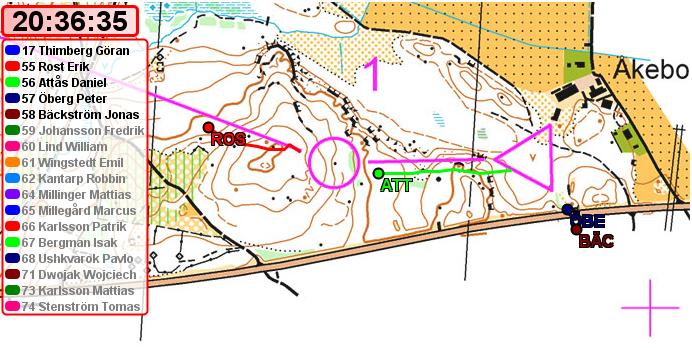
Tonight: Wingstedt, Öberg, Millinger starring in live GPS tracking by GPSSeuranta of 20 men at the Swedish Champs night orienteering. The GPS live tracking starts from 20:30 CET. Night Orienteering always gives very interesting GPS tracking broadcasts. There is also live speakersound and live results.

Among the favourites tonight are Emil Wingstedt, Peter Öberg, Mattias Millinger, Marcus Millegård and Pavlo Ushkvarok.

Links
Webroute: Leg 1-2

Consider the Webroute below before starting to watch the tracking – what would you do when facing this long leg at night?

Powered by WebRouteWorldofO.com

onTEROio – 7-time World Champion visits Ontario!

Posted by Jan Kocbach, 20 Oct 2009@8:00

horseshoe_s
Seven-time and reigning World Orienteering Champion and the King of International middle distance orienteering, Thierry (Tero) Gueorgiou, recently toured Ontario (or is that onTEROio?) with three countrymen including Francois Gonon (a former WOC bronze medalist). The one week visit to Ontario was part of a three week visit to North America for the Frenchmen with stops in New York City, Niagara Falls, Hamilton, Toronto, Ottawa, Montreal and Lake Placid.

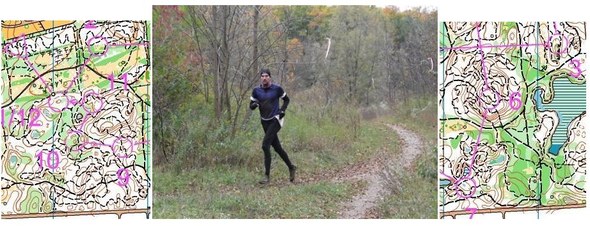
The Golden Horseshoe Orienteering club has written a detailed report about the visit – including several map samples and pictures. One of the places visited was Rocky Ridge – the site of the 2006 North American Orienteering Championships (see map with course in omaps.worldofo.com) and is typical Ontario limestone terrain:

Flat terrain, with small features and plenty of rock. Gueorgiou re-ran both the 2006 Middle Distance and long distance races. His comment to GHO members after the training was that the style of orienteering at Rocky Ridge is similar to that which will be tested at the 2011 World Orienteering Championships in France.

Complete maps (only map samples posted in article for some of these):

Finally: All maps from WMOC in Australia online

Posted by Jan Kocbach, 19 Oct 2009@22:00


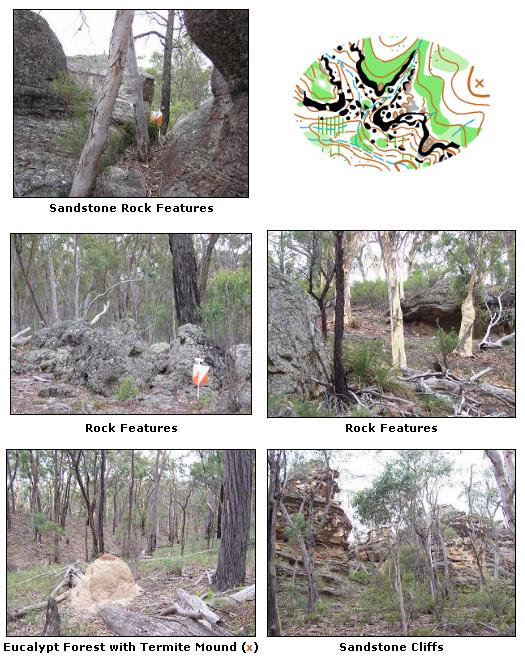
Sandstones are always popular among orienteers. Not only because they are nice to look at, but also because they make interesting orienteering problems. One of the most popular place to find sandstone orienteering in Europe is in Czech Republic – the participants in the World Masters Orienteering Champs in Australia also got their dose of Sandstone orienteering the last week. Maps from all races are now finally online in Routegadget (see links below).

From the terrain description for the long distance:

All long distance events will be held in predominantly gully spur terrain with some areas of sandstone rock outcrops. Vegetation is open eucalypt forest with very little undergrowth. Visibility will be very good and runnability will be fast. There are some steeper areas but most of the terrain has gentle slopes.

wmocterrain
Screenshot from the WMOC 2009 webpage.

Live Events Saturday: Halikko relay and Blodslitet

Posted by Jan Kocbach, 17 Oct 2009@5:00

trackingThe Halikko Relay in Finland offers full GPSSeuranta GPS Tracking, online results and speaker – whereas Blodslitet in Norway offers online results and speaker. Both will be interesting events to follow online.

Easy: O-maps on your Garmin GPS using QuickRoute

Posted by Jan Kocbach, 14 Oct 2009@5:00

gpsmap2_s
Now it is really simple – and it looks perfect! It takes less than 5 minutes to get a orienteering map on your Garmin GPS device – and then you can see exactly where you are on the map using your GPS. And the map looks exactly like it does on paper, as this procedure uses raster maps. There are some small catches regarding map size in the simple procedure explained below, but it is not too difficult to overcome this.

As in the first part of this series all software is freely available – the main difference is that this one is really easy ; you’ll have your first map up in no time! On your GPS unit you can then use the generated map in the same way as any other Garmin map – showing your position on the map, aligning the map correctly, panning and zooming. If you want to get going straight away – click here to go directly to the conversion details.

Garmin Custom Maps

How come you haven’t heard about this before? Garmin only recently made it possible to use Garmin Custom Maps on the newest Garmin GPS units – the Oregon, Dakota and Colorado series – and for now it is only available in a beta version of the firmware for the GPS units. Garmin Custom Maps are actually a special type of kml/kmz-files – the native file format of Google Earth. The good thing for you as an orienteer is that QuickRoute can export kml/kmz-files, and only small modifications are necessary to these kml/kmz-files to make Garmin Custom Maps which you can use directly in your GPS.

Series about GPS and Orienteering

This article is the second in a series about GPS and orienteering here at WorldofO.com, exploring what new technology can do to get orienteering and orienteering maps out to more people. This first article considered the conversion of any OCAD-file to a Garmin vector map (.img-file) – usable for most Garmin GPS units which have a map mode. This second article considers how to show orienteering maps on the newest Garmin GPS units (Oregon / Dakota / Colorado) as raster maps using a much more straightforward procedure taking you only a few minutes for a map. The third article considers showing your position on a modern mobile phone with GPS receiver (e.g. the Iphone or an Android phone).

gpsmap1_s

Why orienteering map on a GPS?

As detailed in the first article in this series, there are a number of reason why you would want to put orienteering maps on your GPS unit. The work described in the first article was mostly done while I was working in the orienteering club Varegg. In our particular case, the interest was in getting youngsters interested in orienteering – and learning them how to understand and use an orienteering map. With founding from Gjensidigestiftelsen and some funding from the Norwegian Orienteering Federation, Varegg had the possibility to buy a set of 10 Garmin Oregon 300 GPS units and develop a method to convert orienteering maps to maps which could be used on the GPS units.

The work described in this article was done while focusing on making orienteering maps useful and accessible for people outside the orienteering community. In particular, there are interesting possibilities for the “Tur-orientering” concept when orienteering maps can be used directly on a GPS unit or especially on a mobile phone with GPS receiver. I will hopefully get a dedicated project going in this direction during winter time.

Vector maps and Raster maps

To understand the difference between the maps generated using the procedure described in the first article and the maps generated using the procedure described in this article, it is important to understand the difference between vector maps and raster maps.

  • The maps you usually use on your Garmin GPS unit (and also most other available GPS units) are vector maps. For a vector map on a Garmin GPS, each symbol from OCAD is mapped to a symbol in the Garmin map file, and new symbols must be constructed in the Garmin map file which resemble the symbols in the OCAD file as closely as possible. This is a difficult process, and generally very difficult to get 100% correct.
  • The orienteering maps you usually see in your web-browser (for example at omaps.worldofo.com) are raster maps . These raster maps can be looked upon as a “photo” of the map, and this photo can contain anything imaginable (even a photo of you in the corner of the map). Recently Garmin has made it possible to use raster maps on the newest GPS units – the Oregon, Dakota and Colorado-series – via a custom map feature using a subset of the kml-format. These raster maps behave like any other map on the GPS unit – and they can look exactly like a normal orienteering map!
What does it look like?

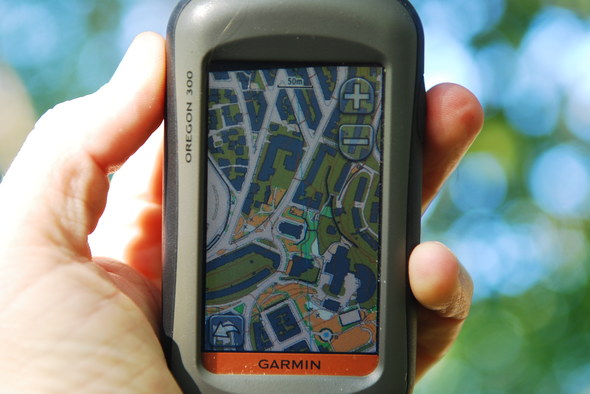
screenshot_gps
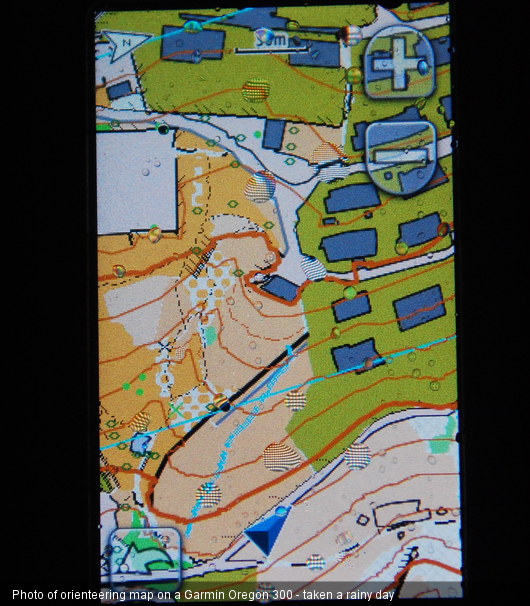
Some photos of the GPS screen of an Garmin Oregon 300 GPS with different maps from QuickRoute loaded. In the third image from the left you see several orienteering maps loaded at different positions.

Contrary to the first article in this series, it looks exactly like the original orienteering map. The pictures above and below are photos of a Garmin Oregon 300 GPS units with maps converted using the procedure described below. The embedded video below shows an example of the usage of an orienteering map converted via the same procedure. As you can see, this looks exactly like a orienteering map – and it is possible to zoom and pan the map. It is a little bit slower than the vector map, but still very usable.

The procedure is so much simpler – and the maps look so much better – that Varegg will probably switch completely from vector maps to raster maps in the work they are doing with GPS units and orienteering maps as described in the first series of this article.


Conversion details: O-map to Garmin Custom Map

The conversion of an orienteering map to a Garmin Custom Map is very simple. At Garmins website you find some background information about how to make Garmin Custom Maps in 5 easy steps and some technical details from the Garmin Tech support forum. GPSFix has also some nice article on Garmin Custom Maps.

It is straightforward to follow the procedure given by Garmin to convert your orienteering map – but following the QuickRoute road described below is probably the fastest way to a georeferenced orienteering map – especially if you are already familiar with the QuickRoute program. If you are a technically interested orienteer with a GPS unit, you have probably already got lots of maps in QuickRoute format, ready to export to Garmin Custom Map format. I found 10 maps on my computer – and within a few minutes I had all loaded on my GPS unit.

Step by step procedure
  1. Download and install QuickRoute! Note! If you download the lastest development version of QuickRoute, you get a Garmin Custom Map directly from QuickRoute!
  2. Adjust your route to the map the usual way (see instructions here) – but use only two points for the adjustment procedure in order to get best results. Your custom map will not be better than you manage to adjust your route with two points. If you have taken a photograph of the map, there will probably be a lot of distortion making the resulting Custom Map bad quality. An export from OCAD will give you best results. There are other procedures available which warp your map, but QuickRoute is not able to do this. If your map is larger than 1 megapixel (1024 x 1024 pixels or 512 x 2048 pixels or similar), the GPS unit will scale the map. Thus you get best results with small maps. Your map file must be smaller than 3 MB to work.
  3. Export the map to kmz (under the File -> Export menu). You can check the exported map in Google Earth to see how well your georeferenced map fits the real world.
  4. Now you have got a kmz-file which is very similar to the Garmin Custom Map format. However, when QuickRoute exports a kmz-file, it puts the map in a separate folder within the kmz-file called “files/”, whereas in the Garmin Custom Map format the map must be in the main folder. Thus to convert the QuickRoute exported kmz-file to a Garmin Custom Map you must unpack the kmz-file (actually a zip-file), move the map-file to the root directory of the zip-file, change the href-tag in the doc.kml-file and rezip the file. Sounds complicated? I’m sure Mats Troeng will fix this in the next release of QuicKRoute if there is demand for it, as it is a very simple fix. Until then, you may download this small compiled perl-script which I have made which makes the job automatically (Note! Windows only, and very briefly tested. Use on your own risk – source code here). Place the file on your desktop, and drag any kmz-file made with QuickRoute onto it, and you will get a Garmin Custom Map which you can transfer directly to your GPS unit. If you use the latest developer version of QuickRoute – you’ve now got a working Garmin Custom Map!
  5. Transfer the file to the folder “/Garmin/CustomMaps” on either the GPS itself or on the SD-card (set the GPS in USB mass storage mode by connection a USB cable).

Note that you need to install the latest beta software release for your Garmin GPS unit in order to use Garmin Custom Maps – but this feature will hopefully soon proceed to a non-beta release of the firmware. For information about how to install the beta firmware see links in Garmins Blog Entry about Garmin Custom Maps.

Limitations – Garmin Custom Maps

There are some limitations/features regarding Garmin Custom Maps (from here):

  • It is ok to have more than one jpeg inside the kmz file.
  • doc.kml, inside the kmz file, is the only kml file that will be processed.
  • Jpegs are the only type of image supported.
  • kmz files are read from \Garmin\CustomMaps directory on both the unit’s internal memory and on the sd card.
  • Images over 1 mega pixel (1024×1024 pixels, 512×2048 pixels, etc.) will be rendered at a reduced resolution on the unit. If this is causing a problem for your map, you can split the image and use multiple jpegs inside of one kmz file.
  • Each jpeg should be less than 3MB.
  • The max number of Custom Map jpegs you can load is 100.
  • The time it take to draw the map is directly proportional to the file size of the jpegs being drawn.

It is possible (although not straightforward) to take a QuickRoute exported kmz-file, automatically split jpg-files which are larger than 1024×1024 pixels into smaller jpg-files, and repack the kmz-file to a working file at higher resolution. That is however beyond the scope of this article.

If you see improvements to the procedure, please add a comment below to let people know about it. If you are trying to get things to work and have problems, please do not send me an email, but rather add a comment below as that may then help others having the same problems.

gpsmap3_s

Maps from Gueorgiou & Team USA training camp

Posted by Jan Kocbach, 12 Oct 2009@20:29

Recommended read: A lot of nice maps and an interesting review of the US Team training camp at Harriman State Park. The training camp was attended by several French national team runners, including multiple world champion Thierry Gueorgiou and Francois Gonon. The review is written by Peter Gagarin over at the US Team Blog – and provides a lot of insight into how the camp was organized.

You find all maps in Omaps.WorldofO.com – and also a big thumbnail included below. Of special interest: The relay course made by Gueorgiou (the second last map below).

The last map below is the WOC 1993 short distance final:

- Back from lunch, the serious part of the training camp, at least for Tero, was a rerun of the Short final from WOC-93. He was taking it especially seriously because his current [previous] coach is Petter Thoresen, who won the event 16 years ago. [...] Tero was 23:20 for the 4.75 km, would have been 3rd back in 1993, though the vegetation has changed some and it’s hard to know how much of an adjustment to make. On this day he was way ahead of any of the North Americans.

You can go directly to the article here (some interesting parts which make it worth a read):

Update: See also maps from the Hudson Highlander following the training camp – some nice long legs there:

Maps
October 12th 2009 – From webpage – Team USA
Map: Training Camp Update: Harriman State Park, NY, October 8-11
Team USA
From webpage
October 12th 2009

Map info

Map found at Team USA website. From news item: Training Camp Update: Harriman State Park, NY, October 8-11

October 12th 2009 – From webpage – Team USA
Map 2: Training Camp Update: Harriman State Park, NY, October 8-11
Team USA
From webpage
October 12th 2009

Map info

Map found at Team USA website. From news item: Training Camp Update: Harriman State Park, NY, October 8-11

October 12th 2009 – From webpage – Team USA
Map 3: Training Camp Update: Harriman State Park, NY, October 8-11
Team USA
From webpage
October 12th 2009

Map info

Map found at Team USA website. From news item: Training Camp Update: Harriman State Park, NY, October 8-11

October 12th 2009 – From webpage – Team USA
Map 4: Training Camp Update: Harriman State Park, NY, October 8-11
Team USA
From webpage
October 12th 2009

Map info

Map found at Team USA website. From news item: Training Camp Update: Harriman State Park, NY, October 8-11

October 12th 2009 – From webpage – Team USA
Map 5: Training Camp Update: Harriman State Park, NY, October 8-11
Team USA
From webpage
October 12th 2009

Map info

Map found at Team USA website. From news item: Training Camp Update: Harriman State Park, NY, October 8-11

October 12th 2009 – From webpage – Team USA
Map 6: Training Camp Update: Harriman State Park, NY, October 8-11
Team USA
From webpage
October 12th 2009

Map info

Map found at Team USA website. From news item: Training Camp Update: Harriman State Park, NY, October 8-11

October 12th 2009 – From webpage – Team USA
Map 7: Training Camp Update: Harriman State Park, NY, October 8-11
Team USA
From webpage
October 12th 2009

Map info

Map found at Team USA website. From news item: Training Camp Update: Harriman State Park, NY, October 8-11

HowTo: Convert any Orienteering map to a Garmin Map

Posted by Jan Kocbach, 11 Oct 2009@16:00

DSC_9954_s
Ever wanted to get orienteering maps on your GPS device, and see exactly where you are using the GPS? Read on to see how you can convert any OCAD file to a Garmin map which you can use on your Garmin GPS unit supporting Garmin .img maps – using freely available software. On your GPS unit you can then use the generated map in the same way as any other Garmin map – showing your position on the map, aligning the map correctly, panning and zooming.

This article is the first in a series about GPS and orienteering here at WorldofO.com, exploring what new technology can do to get orienteering and orienteering maps out to more people. This first article considers the conversion of any OCAD-file to a Garmin map – usable for most Garmin GPS units which have a map mode. The second article considers how to show orienteering maps on the newest Garmin GPS units (Oregon / Dakota) as raster maps using a much more straightforward procedure taking you only a few minutes for a map. The third article considers showing your position on a modern mobile phone with GPS receiver (e.g. the Iphone or an Android phone).

Why orienteering map on a GPS?

DSC_6679_s
There are several reasons why you would want to be able to use orienteering maps on a GPS receiver.

  • To get young people interested in orienteering. Technology may be an extra motivation – this goes especially for boys, but we’ve seen the same for girls as well. The GPS receiver is a gadget which catches the interest of youngsters immediately, and is a good way to introduce youngsters to orienteering. We got a lot of positive feedback from 8-12 year old who had not tried orienteering before, who thought this was super cool.
  • Orienteering maps on a GPS receiver is an excellent way to better teach young people orienteering, as they can better see the relation between map and terrain when there is a dot on the map showing them where they are at any given moment.
    • This has proven to be very instructive for 8-10 year old, who we have observed understanding the different map symbols very fast when using a GPS.
    • Another interesting use was to let one of our 16-year old runners who is quite new in the sport run a course with a GPS with the orienteering map and course loaded - Instead of focusing on where I was, I could concentrate on where to run to the next control. I could run a lot faster as I always knew where I was, and feel like a real orienteer, he said afterwards.
    • A third use of a GPS with orienteering map among youngsters has been to let beginners who try a more difficult course for the first time bring a GPS with them as a security, being instructed to only take a look at it if they are really lost. Usually they won’t need it at all, but it makes it easier for them to take the step up from beginner to the next level.
  • Make orienteering maps useful and accessible for people outside the orienteering community. Orienteering maps are superior to most maps available for GPS’es today for hiking purposes. There is both a big market – and a big possibility for getting people interested in orienteering and understanding orienteering maps.
  • For mapmakers it is very useful to transfer the draft map to the GPS, and bring the GPS to the forest and field check the map. This has been done quite a lot among map makers in New Zealand (and maybe also elsewhere).
  • Potentially, GPS units with orienteering maps could be used in normal orienteering competitions as well. My personal opinion is that that should be forbidden. One might make special categories for GPS orienteering in the future, but a mix of GPS and non-GPS orienteering would not be good.

The work described in this article is mostly done while I was working in the orienteering club Varegg. In our particular case, the interest was in getting youngsters interested in orienteering – and learning them how to understand and use an orienteering map. With founding from Gjensidigestiftelsen and some funding from the Norwegian Orienteering Federation, Varegg had the possibility to buy a set of 10 Garmin Oregon 300 GPS units and develop a method to convert orienteering maps to maps which could be used on the GPS units.

The GPS units have been used – and will further be used – in activities directed towards youngsters, both to get new youngsters interested in orienteering, and to improved the map understanding of the youngsters in the club.

Another interest in the future is to work on making orienteering maps useful and accessible for people outside the orienteering community. In particular, there are interesting possibilities for the “Tur-orientering” concept when orienteering maps can be used directly on a GPS unit or especially on a mobile phone with GPS receiver.

What does it look like?

DSC_9968a_s
In the embedded video below you see an example of the usage of an orienteering map converted from OCAD to Garmin map on an Oregon 300 GPS unit. As you can see, this looks like a orienteering map – you get to see your position on the map, and it is possible to zoom and pan the map. You may also let the map automatically align to the direction you are moving.

This first article in the series considers conversion of OCAD maps to Garmin maps (.img-files). These Garmin maps should be usable on a number of GPS units like e.g. the Garmin Oregon series, Garmin Colorado series, Garmin Dakota series, Garmin GPSMAP-series, Garmin eTrex-series and Garmin Edge 605/705 (Note! Has only been tested on Garmin Oregon and Garmin GPSMAP so far). The resulting Garmin maps are vector maps which behave exactly like any other Garmin maps. It is, however, not straightforward to get the maps to look exactly like an orienteering map, although it is possible to get quite close.

In the next article in this series we will consider raster maps which you can get to look exactly like an orienteering map – these do however only work on the Oregon, Dakota and Colorado series of GPS units.

Conversion details (Warning: Technical!)

Now we’ve shown that it works – and it is time to get down to the technical details. Note that you will need an OCAD-file of the map to convert to proceed with the procedure. This gets very technical – so most of you should probably stop reading here. If you are lucky enough to have a Oregon, Dakota or Colorado unit, you may rather want to wait for the next article in this series which tells you how to use raster maps on the GPS units. The procedure is a lot easier to follow – and the map on the GPS will look exactly like the orienteering map.

Note that the method described here is kind of a hack – and can not even be regarded as an alpha version – but it has worked for me for a number of maps, and I decided to share it with everybody in case somebody want to use and/or improve it. Only the basics are included for now. If you see improvements to the procedure, please add a comment below to let people know about it. If you are trying to get things to work and have problems, please do not send me an email, but rather add a comment below as that may then help others having the same problems.

Garmin .IMG-files are vector maps. That means that each symbol in your OCAD file must be converted separately to a corresponding symbol in the Garmin map format. The problem in this respect is that there is no standard set of OCAD-symbols. Any OCAD-map may have their own set of symbols and colors, and thus for the conversion to work, you have to make a mapping for each OCAD-symbol in use on a given map. The ocad2img program lets you make this mapping in a straightforward way – but it requires some work to get it exactly right – especially for a map with many “strange” symbols. However, even for a test map with a lot of special symbols, a conversion with good visual results was done in less than 30 minutes.

Step 1: Prepare your OCAD-file

Step one in the procedure is to prepare your OCAD-file. Note that this has only been tested in OCAD9.

  • Your OCAD-map must be georeferenced, i.e. each point on the map must be correctly geographically referenced. Many OCAD-maps are already georeferenced. If your map is not georeferenced, one method for doing so using Google Earth is outlined below.
  • For the symbol-conversion to work, the OCAD-file must be in OCAD7-format. The OCAD-file itself may be in OCAD9-format, but symbols must be in OCAD7-format. For the remainder of this article, we assume that your original map is saved as example.ocd and that you have loaded this map in OCAD, selected all and pressed delete, and saved the resulting file as example_ocad7.ocd (this saves all symbols and colors to a specific file).

For georeferencing the following procedure will give you a georeferenced map in OCAD 9 (although it might not be accurate enough for all purposes). I have not checked if the same procedure is applicable in OCAD 8 / OCAD 10, but the OCAD people should be able to help you out as this is a job done fairly often:

  1. Open Google Earth
  2. Under Layers in the left margin of GE, tick on “Roads” to show the roads layer. Roads are usually accurate even is satellite images are not too good. You may choose to use either roads or the satellite images in the following.
  3. Under Tools->Settings in GE, set Show Lat/Long to Universal Transverse Mercator
  4. Go to a point in Google Earth which is on the map and is 100% identifiable (preferably a road crossing or similar). Write down the UTM coordinates of this point – including UTM zone. For my example map, UTM zone is 32 N, and coordinates are given as 298302.22 – 6700857.93
  5. In OCAD, go to Options -> Scales, and set “Real World coordinates”. Under coordinate system, choose the correct UTM grid (in my case UTM 32N). For Horizontal offset and Vertical offset choose the numbers you found (298302 and 6700857)
  6. (a) In OCAD, go to Extras -> Transform Map. Click the point you found previously (when the program says click point on map).
  7. (b) In OCAD, move around the map until the coordinates shown at the bottom of OCAD show the correct values of 298302, 6700857. Tip: It is on a cross!
  8. Repeat with at least two more points (Find point on Google Earth, write down position, click for map point etc.)
  9. Press return in OCAD. Now the points are transformed.
  10. You can check how accurate the transformation is by going over the map with the mouse in OCAD, and observing the transformed coordinates at the bottom of the window in OCAD.

Now you have got a georeferenced map, and can continue to the next step.

Step 2: Download and unzip software

The next step is to download the software you need for the conversion to work. Unfortunately I can not offer all in a single download, as I have not got the rights to do so.

  • Ocad2img.zip which includes:
    • ocad2img.exe – the converter you should run when you have all files installed. This is a compiled version of a
      perl script written by me which is available under the GNU GPL license. The source code is included – free to use and modify according to the GNU GPL license. The perl script is included in the zip-file, and can also be downloaded directly from here. If you want to do modifications to the code, you need a version of perl installed. It has currently only been tested under ActivePerl which you can install from here. Note! This is a hack – the code is not well documented.

    • ocad2mp.exe including source code. This is a Sourceforge project described as The goal of this project is to develop converter from OCAD map format to open PFM(Polish Map Format) for further use with cGPSmapper compiler. This allows easy use of OCAD maps in Garmin GPS receivers. This is the most important part of the code – ocad2img is actually only a wrapper around ocad2mp which allows you to use custom map types in the Garmin receiver.
  • cgpsmapper (see also download page where you can buy a Pro version with which commercial use of the generated maps is allowed).
  • Sendmap.

You now have three zip-files. Unzip all files to the same directory, and you are ready to go. There is no need for any perl install if you don’t want to do modifications to the code.

I have now got the following files in my directory:

  • Convert\
  • ocad2mp_src\
  • ocad2img.pl
  • ocad2img.exe
  • gpl-3.0.txt
  • cgpsmapper.exe
  • sendg.dll
  • cpreview.exe
  • ocad2mp.exe
  • sendmap20.exe
  • createEXEUploadExample.bat
  • filelist.txt
  • 10320.TYP
  • sort.img
  • licence.txt
  • symbols.txt
  • expired.txt
  • 10000012.img

Not all of these files are required, but rather just keep all than erasing some of them.

Step 2: Run ocad2img

Now the OCAD-files are prepared, and all the required software is downloaded. For simplicity, copy your OCAD-files example.ocd and example_ocd7.ocd into the same directory as the program files. Now its time to start ocad2img.exe. In case you have no OCAD-files at hand, you can download example-files example.ocd and example_ocd7.ocd.

When you start ocad2img, you get the following welcome screen:

ocad2img_main_s

Here you can read a previous config-file by pressing “Read config” (very useful later on), you can change which file to convert, and so on. The last two input fields – ID of Garmin map and FID of Garmin map – are important. This gives your generated map and symbol set an ID which should be unique to your map. If you will only have one map on the GPS, you can just use the ones given here. If not, you should change these for different maps – I have not presently got details about which values are allowed to use. Each time you run ocad2img a config-file will be saved including the time and date. Reload this to rerun the conversion and change some details.

For our example case with maps called example.ocd and symbols/colors saved in example_ocd7.ocd, you can just click “Continue” to continue the conversion process. You will then get up an overview of all symbols used in your OCAD map. The first column is the OCAD symbol number, the second column is what kind of symbol this is, and the third column is a description of the symbol. The fourth column is an icon showing how this symbol will be represented in your Garmin map.

checksymbols_s

If you click the icon, you may change the representation of this OCAD map symbol in the Garmin map. E.g. by clicking one of the line symbols, you get up the following dialog:

symboltochange_s

Here you can choose a new representation. The symbols which you can change to are read from the file symbols.txt. If you want to use ocad2img a lot, you will surely want to make your own symbols.txt file.

When you have finished changing all the symbols you want, click “Start conversion” at the bottom of the page to start the conversion process. For my example map, this results in several files being generated – the important ones being 17360060.img and 10378.TYP. The first of these is the Garmin map file, the second is the TYP-file of the Garmin map describing the custom symbols used in the map. If you would upload only the first of these files to your GPS, you would not get any custom symbols in your map, and your map would not look nice at all.

Step 3: Transfer to your GPS

The last step is to transfer your new Garmin map – including TYP-file – to your GPS. I will list two ways of transferring to your GPS here:

  1. Works for Garmin Oregon/Dakota/Colorado with new firmware (you must upload the newest firmware version to your device for this to work).
    • Run sendmap20.exe which you have in your directory
    • Drag both files 17360060.img and 10378.TYP into sendmap20
    • Click “Create GMAPSUPP.img”
    • Choose a filename for your map. I will call it example.img.
    • Transfer the mapfile example.img to your GPS into the “Garmin”-folder via USB (you can download a version of example.img for the example.ocd-map described above – with no changes done whatsoever regarding symbol changes)
    • The map should now be available on your GPS when you turn it on – along with all the maps you had there previously. For best result, I usually disable all maps except for the one I am interested in via settings.
  2. Works for all Garmin GPS units: Use sendmap20 to upload the map to your GPS. Note! This will overwrite all maps you have uploaded to your GPS via Mapsource.
    • Run sendmap20.exe which you have in your directory
    • Drag both files 17360060.img and 10378.TYP into sendmap20
    • Click “Upload maps to GPS”
    • The maps should now be available on your GPS when you turn it on. Note that all other maps are overwritten when using this procedure.

It is also possible to make this work via Mapsource – and it is even possible to make a installer which automatically installs the map in Mapsource / on your GPS, but that is beyond the scope of this article.

Acknowledgments

Thanks to Gjensidigestiftelsen and the Norwegian Orienteering Federation who supported this work. Thanks also to Richard Hensby for many discussions and tips regarding the conversion of OCAD maps to Garmin IMG maps. And thanks to the developers of ocad2mp – without which this would had not been possible.

In the future, Varegg will probably use the new custom raster map features on the Oregon GPS (to be described in the next article in this series) instead of IMG-maps / vector maps, as the procedure is much simpler for raster maps – and also the maps on the GPS will look exactly like the orienteering map you have in your hand. Still, the procedure described above will come in useful in some cases.

DSC_9917_s

Next Page »